Choosing the wrong image format can make your website slow or your photos look blurry. Here is the simple breakdown you've been looking for.
1. JPEG (Joint Photographic Experts Group)
- Best for: Photos, real-world images with millions of colors.
- Pros: Small file size, compatible with everything.
- Cons: No transparency, "lossy" compression (can look blocky if compressed too much).
2. PNG (Portable Network Graphics)
- Best for: Logos, screenshots, and graphics with sharp lines.
- Pros: Supports Transparency (clear backgrounds). Lossless quality.
- Cons: Giant file sizes. Never use PNG for photos unless you need to.
3. WebP (The Modern Standard)
- Best for: Everything on the web.
- Pros: 30% smaller than JPEG for the same quality. Supports transparency like PNG.
- Cons: Older computers (Windows 7 era) might not open them natively.
How to Convert Between Formats
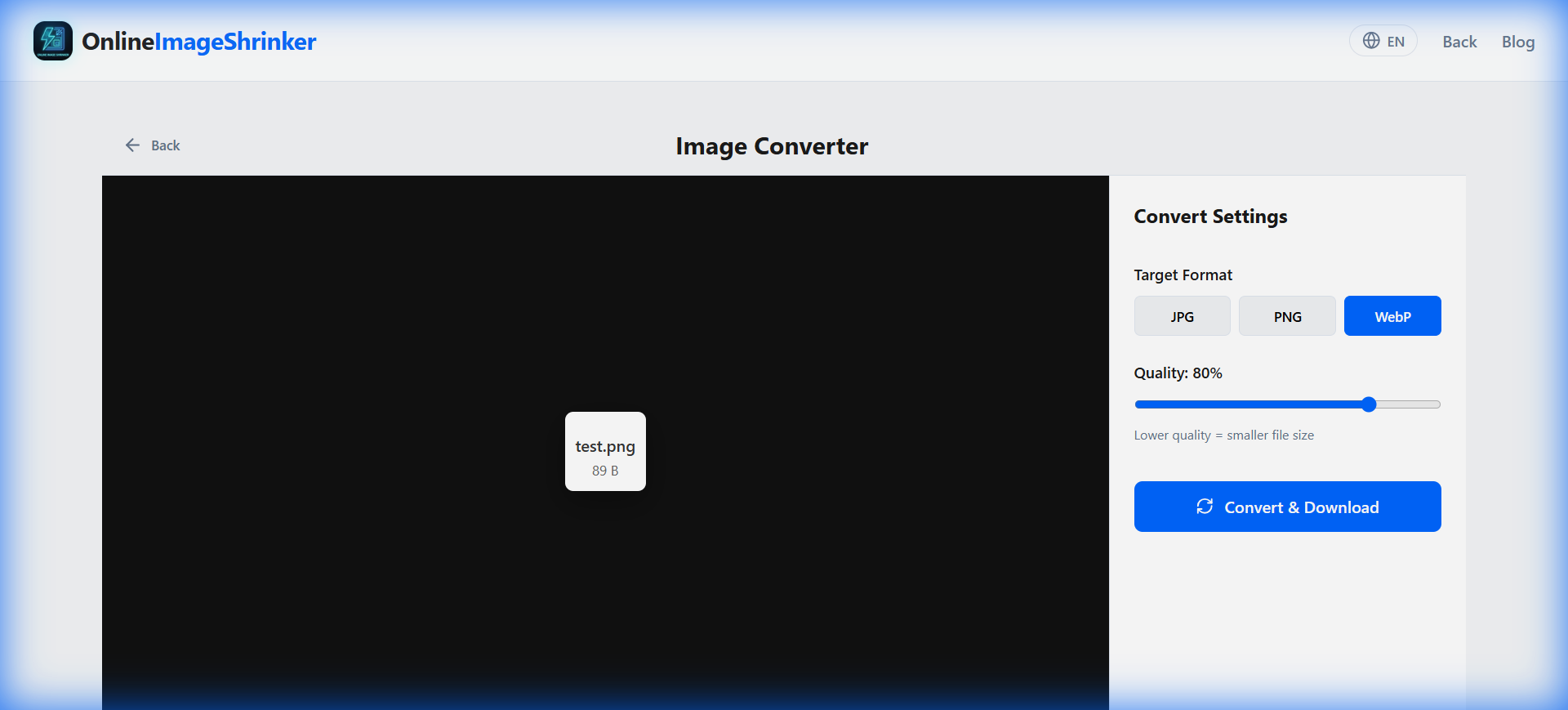
Need to turn a huge PNG into a small WebP for your website? Or open a WebP file in Photoshop?
- Use our Image Converter.
- Upload your file.
- Select your target format (e.g., WebP).
- Drag the Quality slider (80% is the sweet spot).
- Click Convert.